
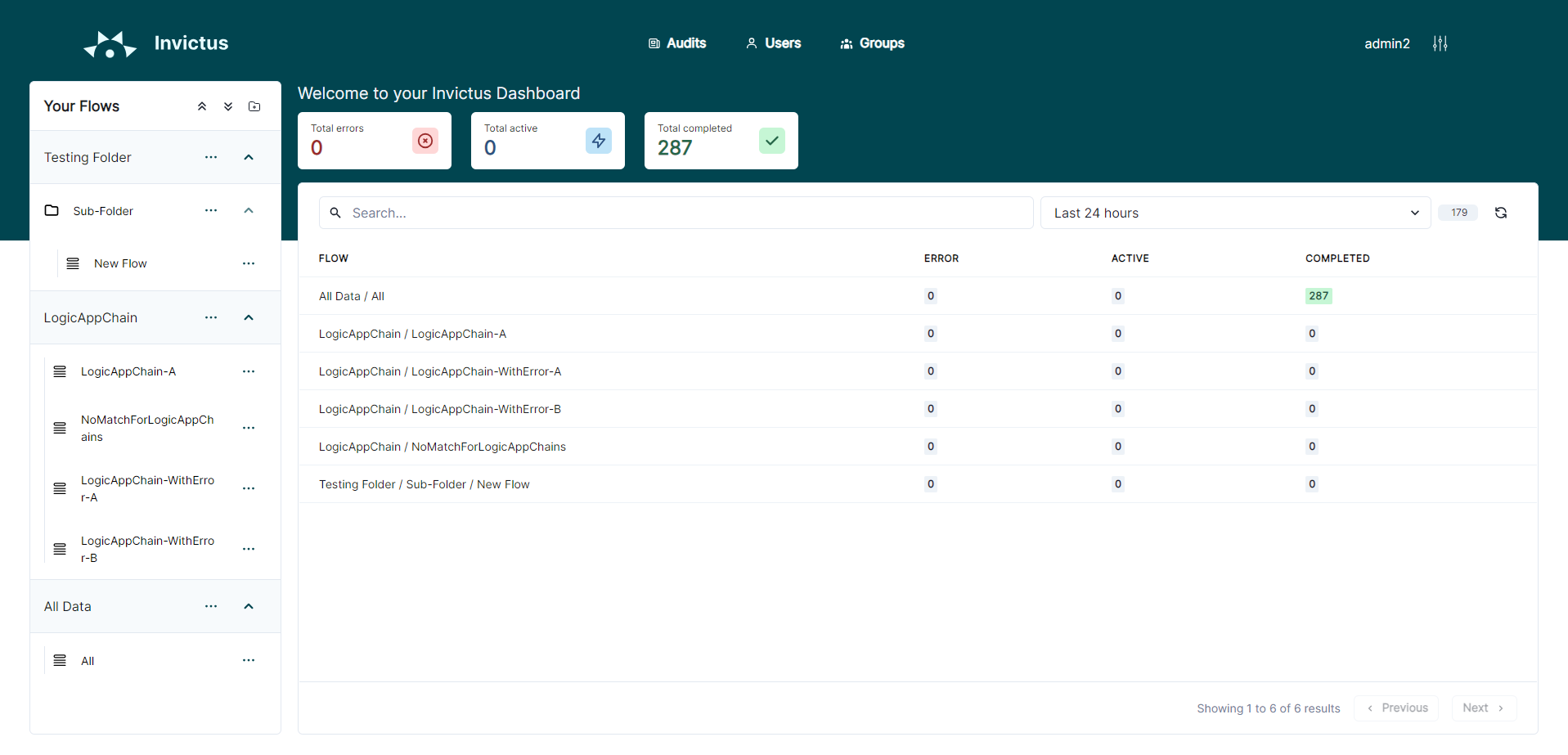
The Dashboard home page shows the status of all your flows. Each flow shows how many messages are in each state:
- Active: messages the flow is working on now.
- Completed: messages the flow has done with no errors.
- Error: messages the flow has paused, held, or stopped.
Selecting the flow name opens the details for that flow. Selecting a status opens the search page for that status.
Taking action on messages
When a message needs attention you can act on it directly from the Dashboard. The available actions depend on how the flow type.
- Resubmit: start the message again from the beginning, as if it just came in. Use this for a fresh attempt, even on a message that already completed.
- Resume: pick up only where the message got stuck, without repeating the steps that already worked. Only available for messages in Error status, often the fastest way to retry.
- Ignore: mark the message as handled without re-running anything. Useful when you expected an error or you solved the problem another way.
Flow actions depend on how the flow receives its messages. See Import via Azure Logic Apps for the supported cases.
Organizing flows in folders
The Dashboard lets you group your flows into a folder tree.
The tree below shows flows Invoices and Total cost in the Invoices folder. The flow Inbound is in the Customer sub-folder.
You can construct a flow detail URL that redirects users to the details page of the flow, but following the breadcrumb path of the flow.
https://<your-dashboard-url>/flowpath/Invoices/Customer/Inbound
Make sure that both the folder and the flow's name is unique horizontally so that the breadcrumb only points to a single flow.